On 23 September 2026 Ledger added native shielded ZEC to Ledger Wallet Desktop. One Zcash account now holds a transparent balance and a private balance in Zcash's Ironwood pool. Your private keys stay on your Ledger, and every transaction is reviewed and signed on the device.
Desktop only. Ledger's announcement says shielded ZEC is "available on Ledger Wallet Desktop only. Mobile support is not available at this time, but is coming soon." The desktop app shows the same notice. Checked on 15 October 2026.
Preparation
A Ledger device that runs the Zcash app: Nano S Plus, Nano X, Stax or Flex. The current Zcash app is not built for the original Nano S.
Ledger Wallet Desktop 4.21 or later, downloaded only from ledger.com. This guide used version 4.24.0.
The latest Zcash app on your Ledger (3.9.4 when this guide was written).
A small amount of ZEC to test with. Every step below was done on mainnet with 0.001 ZEC. Each transaction costs a small network fee (0.00015 ZEC in our test).
Your 24-word recovery phrase stays on paper. Never type it into a computer or share it.
Step by Step Guide (Ledger Wallet Desktop)
1. Install or update the Zcash app
Open Ledger Wallet, connect and unlock your Ledger, and open My Ledger. Allow the connection on the device.
Search for Zcash in the app catalog, then click Install, or Update if it is already installed.
Open the Zcash app on your Ledger. The screen reads "Zcash app is ready". Scroll right to App info to check the version.
2. Add a Zcash account
In Ledger Wallet, choose Add account. In Select asset, search for Zcash and pick Zcash (ZEC), not a wrapped token such as Binance-Peg Zcash Token.
With the Zcash app open on your Ledger, Ledger Wallet finds your account. Tick it under Select the accounts you want to add and click Confirm.
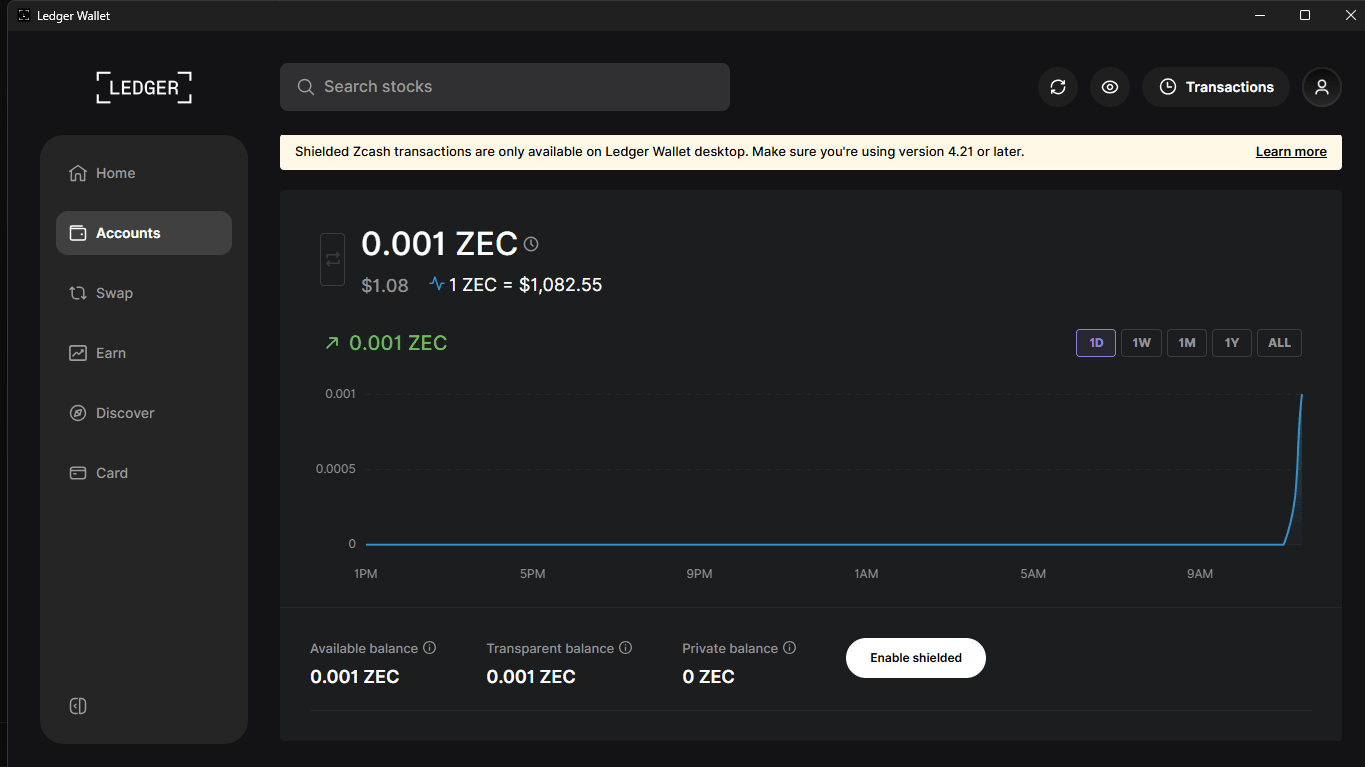
The account page shows Available balance, Transparent balance and Private balance, plus an Enable shielded button.
3. Enable the private balance
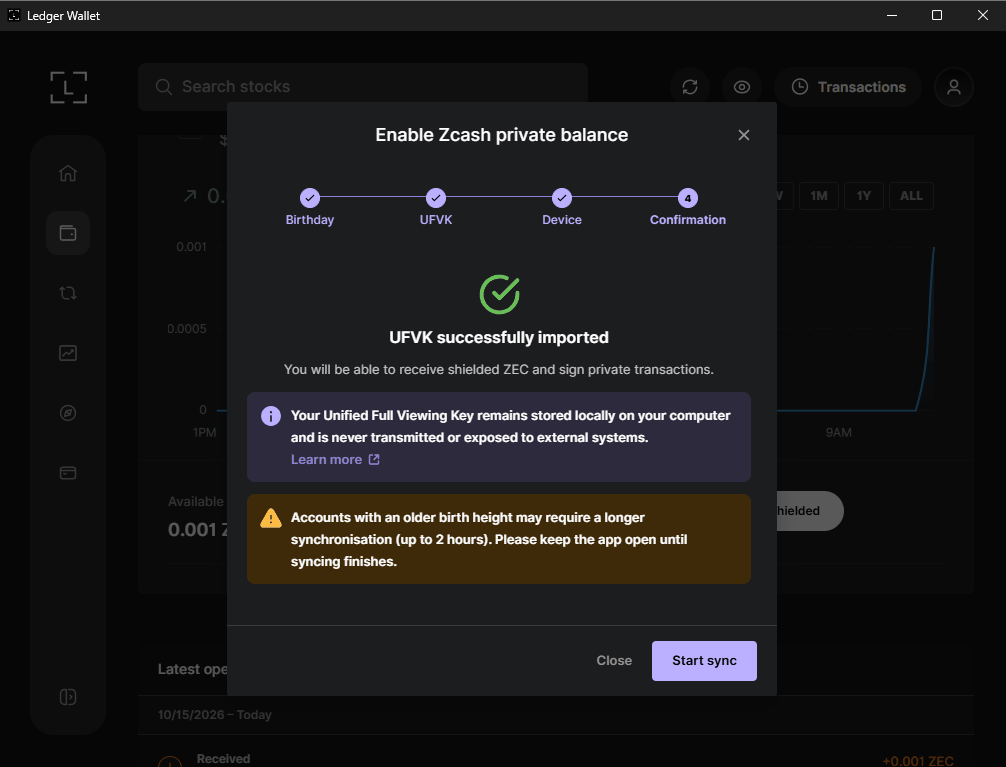
Click Enable shielded. The Enable Zcash private balance window has four steps: Birthday, UFVK, Device and Confirmation.
Birthday: for a new account, keep the birthday height on today's date. Only tick "This account received shielded ZEC in the past" if you know it did, because scanning from block 0 can take a long time.
UFVK and Device: Ledger Wallet asks your Ledger to export your Unified Full Viewing Key (UFVK). Read the screens on the device and approve. If you see "Device connection lost", make sure the Zcash app is open, approve promptly and click Retry.
When you see UFVK successfully imported, click Start sync. When syncing finishes, the button changes to Update balance with a "Last sync" time.
The viewing key stays on your computer. It can find your shielded funds but cannot spend them.
4. Receive ZEC and verify both addresses on your Ledger
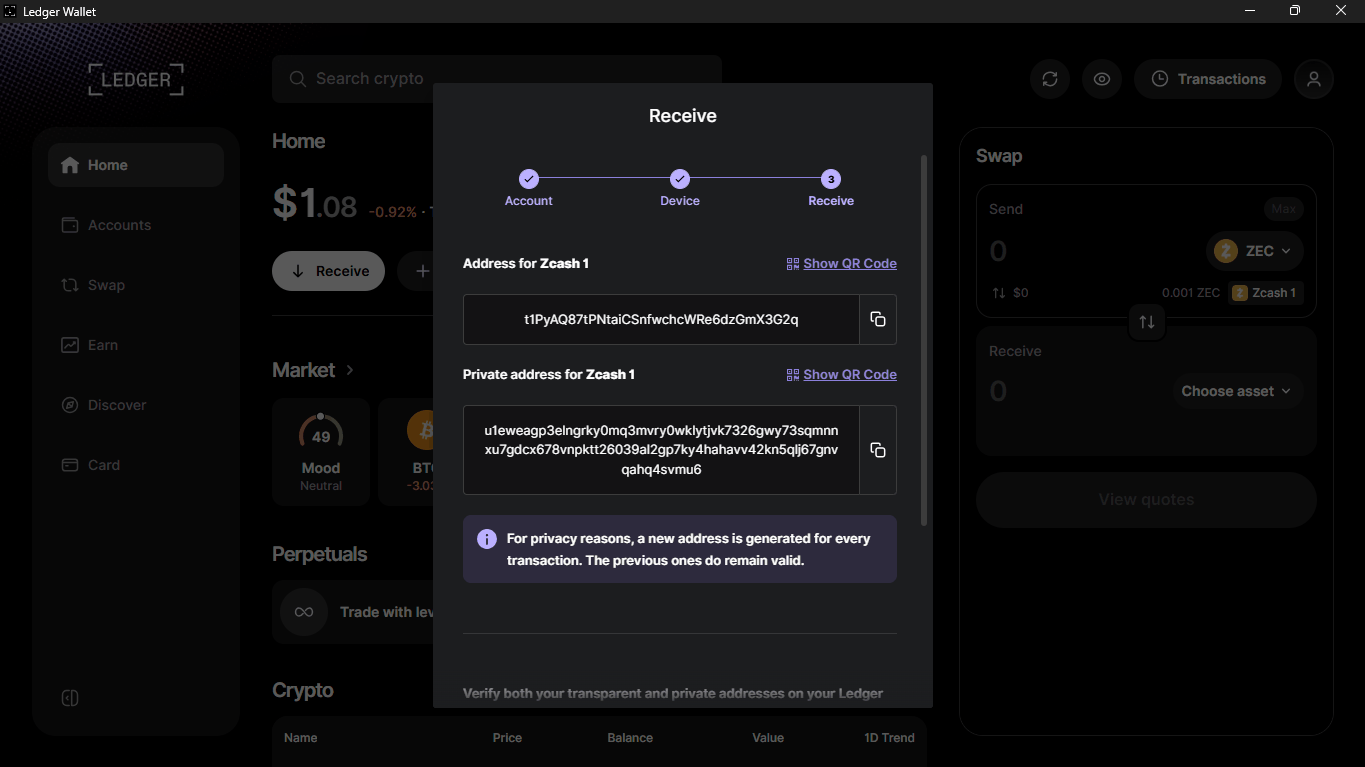
Click Receive and pick your Zcash account. Ledger Wallet shows an Address for Zcash 1 (transparent, starting with t1) and a Private address for Zcash 1 (starting with u1). Earlier addresses stay valid.
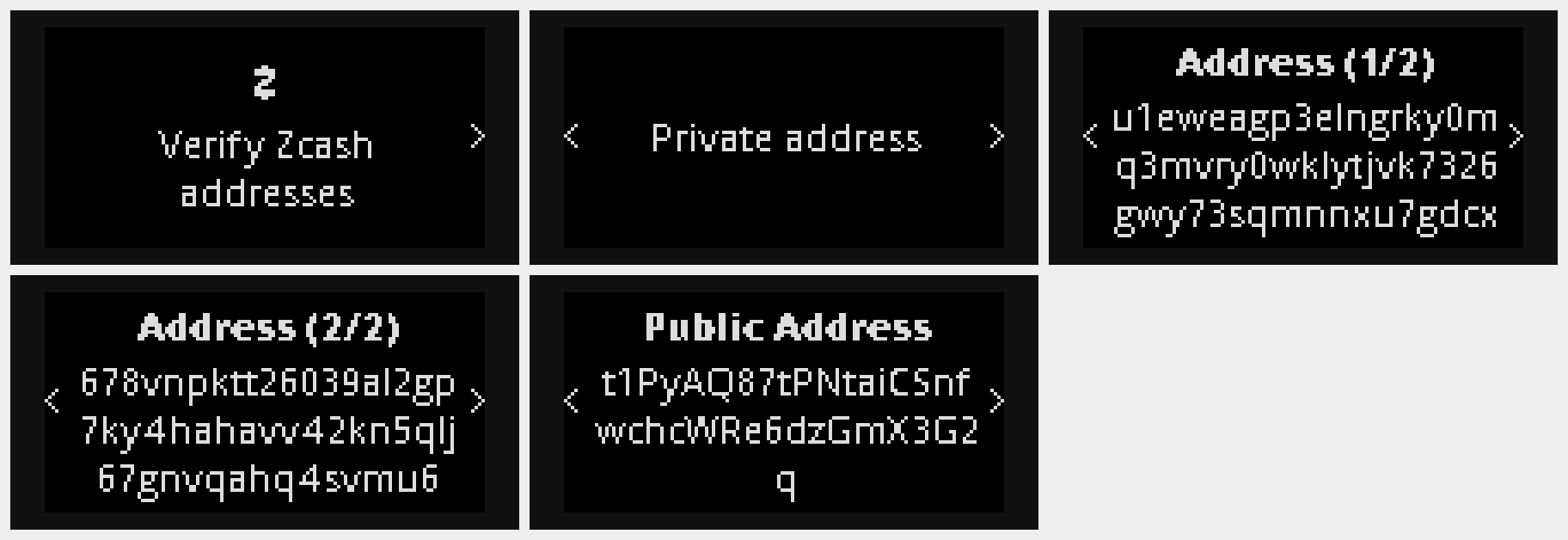
Your Ledger shows "Verify Zcash addresses", the Private address across two pages, then the Public Address. Compare every character with the screen before you share either address, then confirm on the device.
Prefer the private address; use the transparent one only when the sender supports nothing else.
5. Move transparent ZEC into your private balance
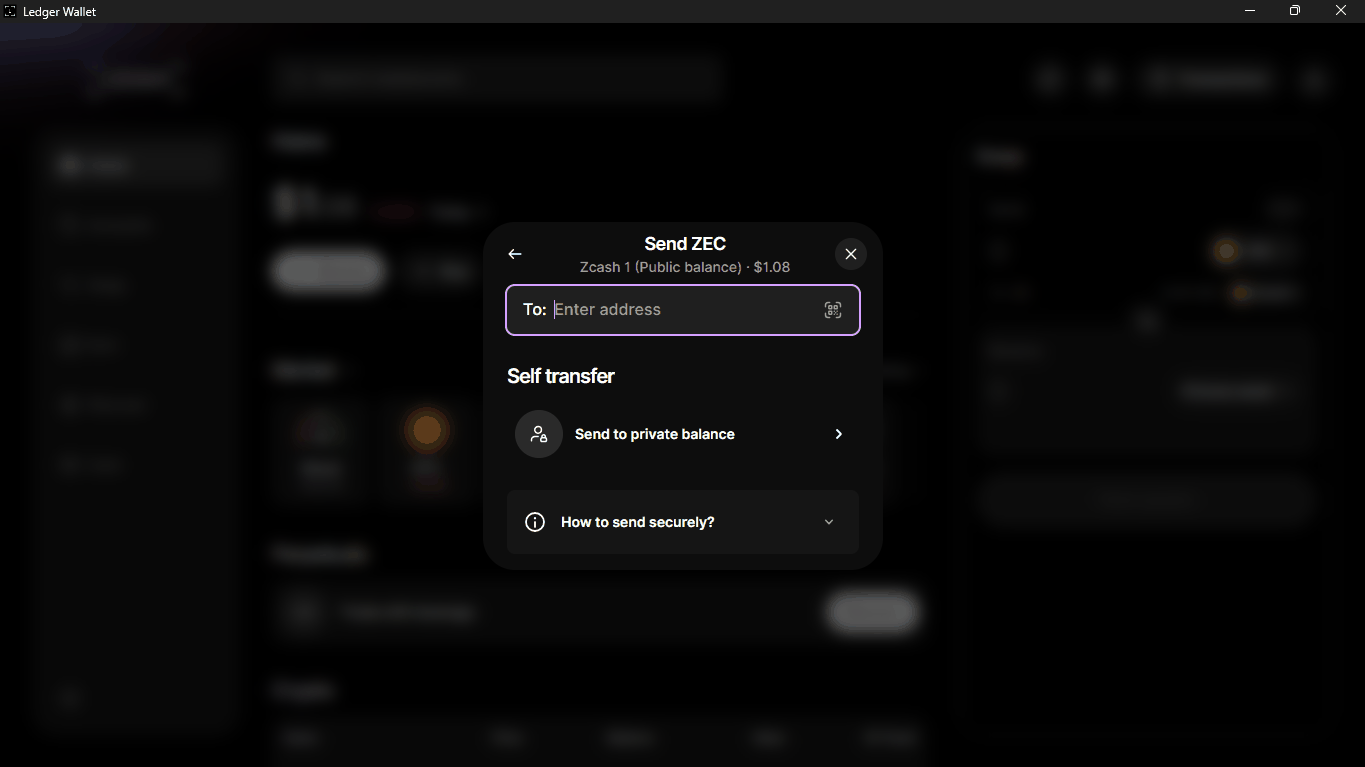
Click Send. Under Self transfer, choose Send to private balance.
Enter an amount or use 25%, 50%, 75% or Max. Check the network fee, then click Review.
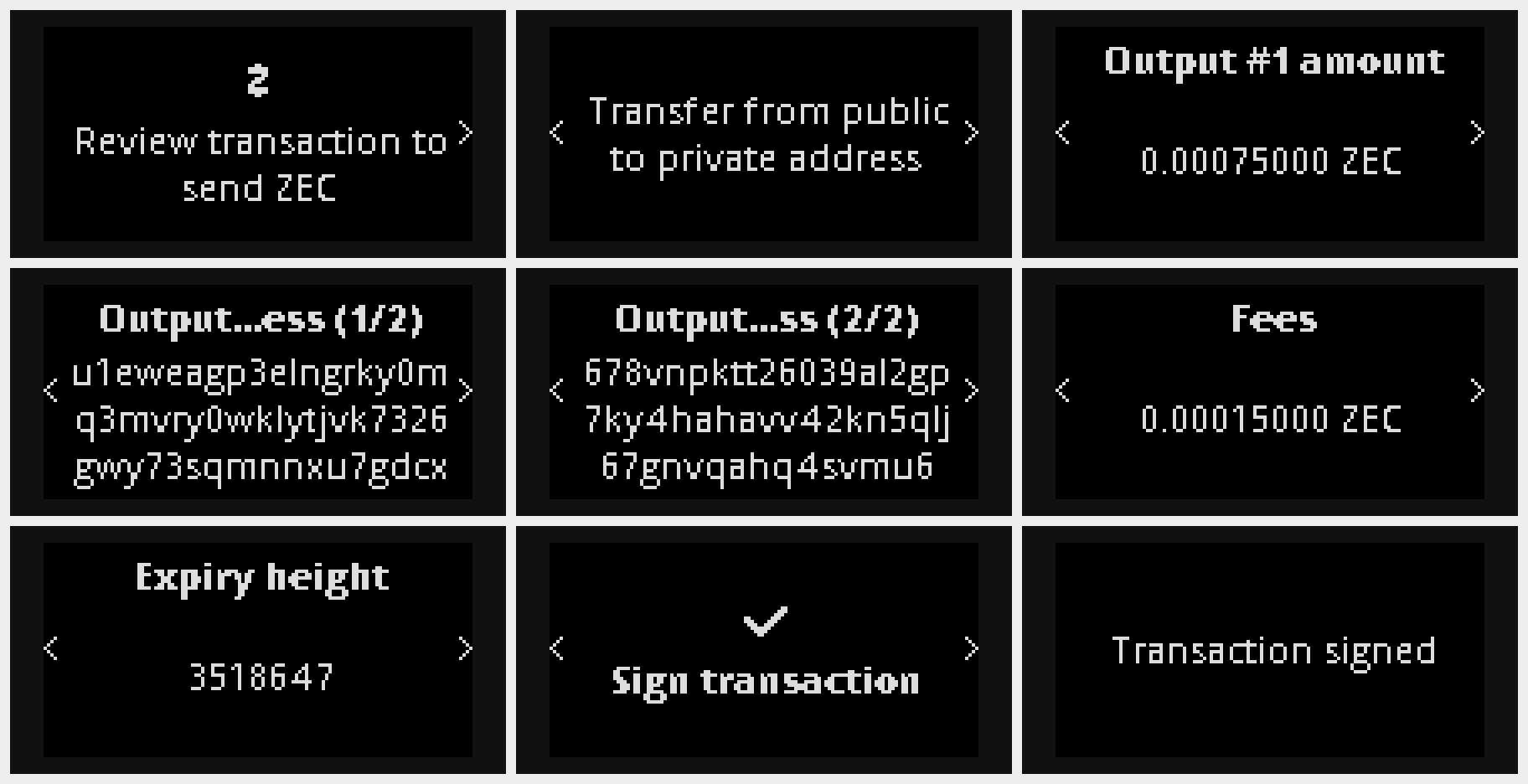
On your Ledger, step through: "Review transaction to send ZEC", "Transfer from public to private address", the amount, the output address in two pages, the fee and the expiry height. Check that the output address matches your private address from step 4, then press both buttons on Sign transaction.
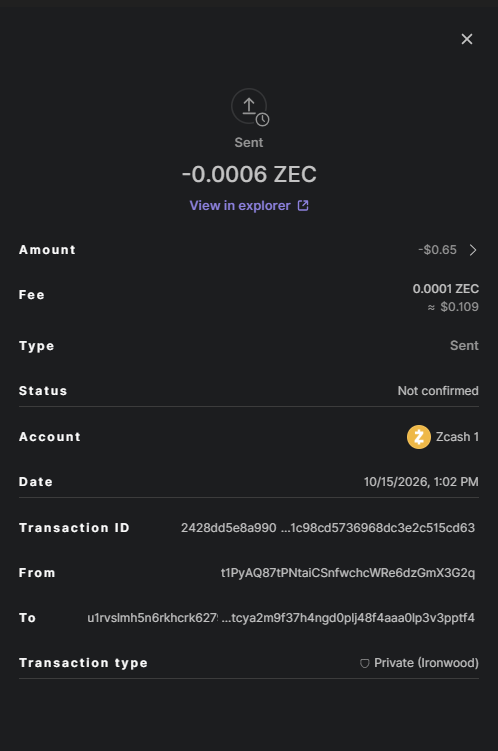
Ledger Wallet shows Transaction sent. In the transaction details, the type reads Private (Ironwood).
Ledger Wallet notes that a self transfer links your shielded funds to your public address. Receiving straight to your private address keeps them unlinked.
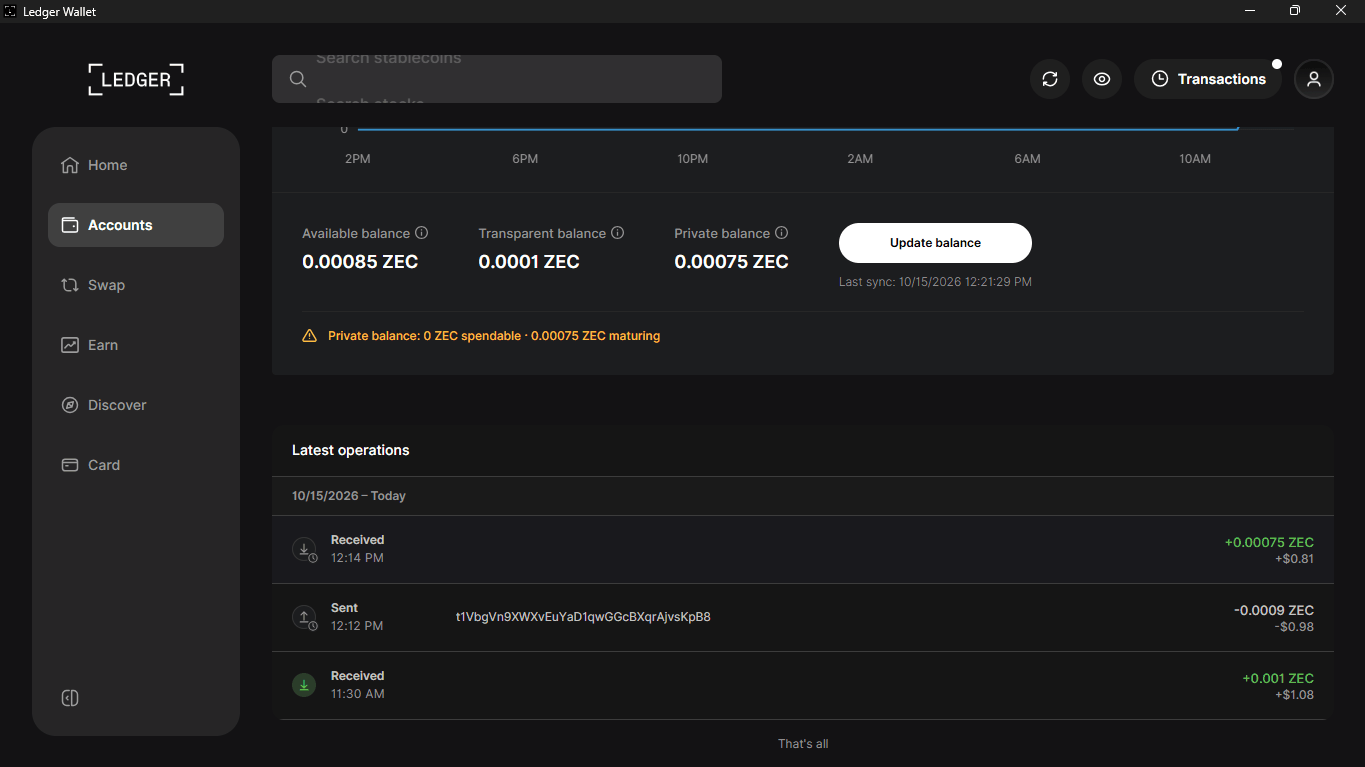
After the transaction confirms, the transparent balance goes down and the private balance goes up. New shielded funds show as "maturing" until they have enough confirmations to spend.
6. Send ZEC from your private balance
Once the private balance is spendable, click Send and set Transfer from to Private balance.
Paste the recipient's address and enter the amount. You can add an encrypted Memo (optional) of up to 512 bytes, which only the recipient can read.
Review the recipient, amount and fee on your Ledger, then press both buttons on Sign transaction.
Good to Know
Shielded ZEC on Ledger is desktop only for now (checked 15 October 2026).
Ledger Wallet's private balance uses the Ironwood pool.
Ledger says you can share read-only access to your transaction history with a tax advisor. Anyone with your viewing key can see your shielded history, so share it only on purpose.
The device screens in this guide were captured with Ledger's Speculos emulator (Nano S Plus) running Zcash app 3.9.4, connected to Ledger Wallet Desktop 4.24.0 on Zcash mainnet. A physical Ledger runs the same app and shows the same screens.